Your customers
Everything you do for the people you sell hosting to starts in two places: Customers › Accounts, where you create and manage them, and Selling › Packages, where you design the plans they buy.
The account list
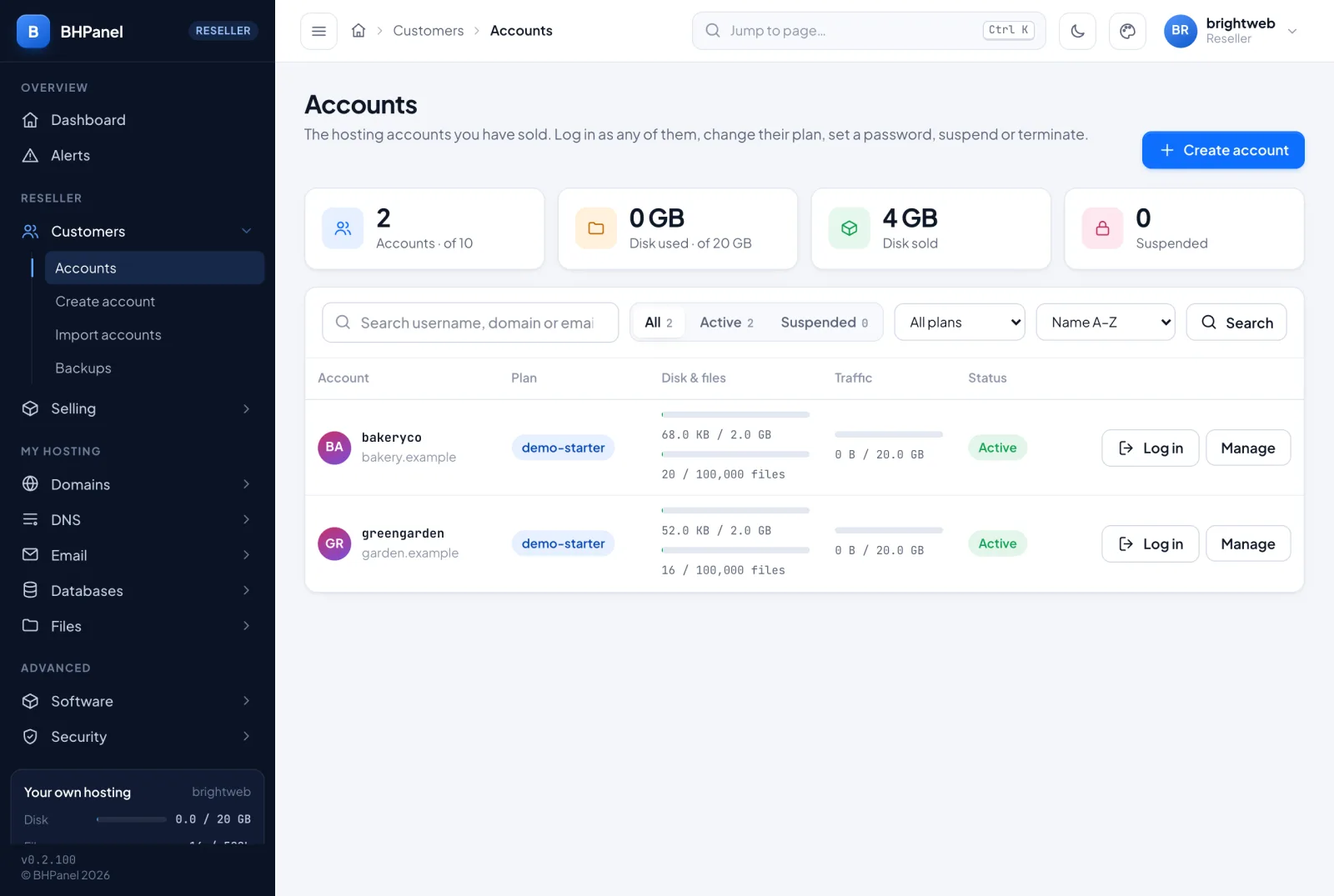
Open Customers › Accounts. At the top, four boxes sum up your business:
- Accounts - how many customers you have, and how many your plan allows.
- Disk used - what your customers use, out of the disk you hold.
- Disk sold - the total disk of all the plans you have sold. It says "oversold" when it is more than you hold.
- Suspended - how many are suspended. Click it to see them.
If your disk pool is full, or your customers together use more than you hold, a notice appears above the list. While it is there, new accounts are refused. Nothing that already exists is touched.
Find a customer
- Type in the search box and press Search. It looks in the username, the domain and the email.
- The All, Active and Suspended tabs filter by status, each with its count.
- The plan menu shows only the plans that have accounts on them.
- The sort menu offers Name A–Z, Newest first and Most disk used.
The list shows 20 customers per page.
The columns
- Account - the username, and the customer's website or websites underneath.
- Plan - the package they are on.
- Disk & files - two bars: disk used out of the plan's disk, and the number of files out of the plan's file limit.
- Traffic - this month's web traffic out of the plan's bandwidth, or "unlimited".
- Status - Active, Suspended (with your reason underneath), or Bandwidth limit. A customer over their traffic limit has all their sites answer "Bandwidth Limit Exceeded" until the 1st of the month, or until you give them a bigger plan.
Create an account
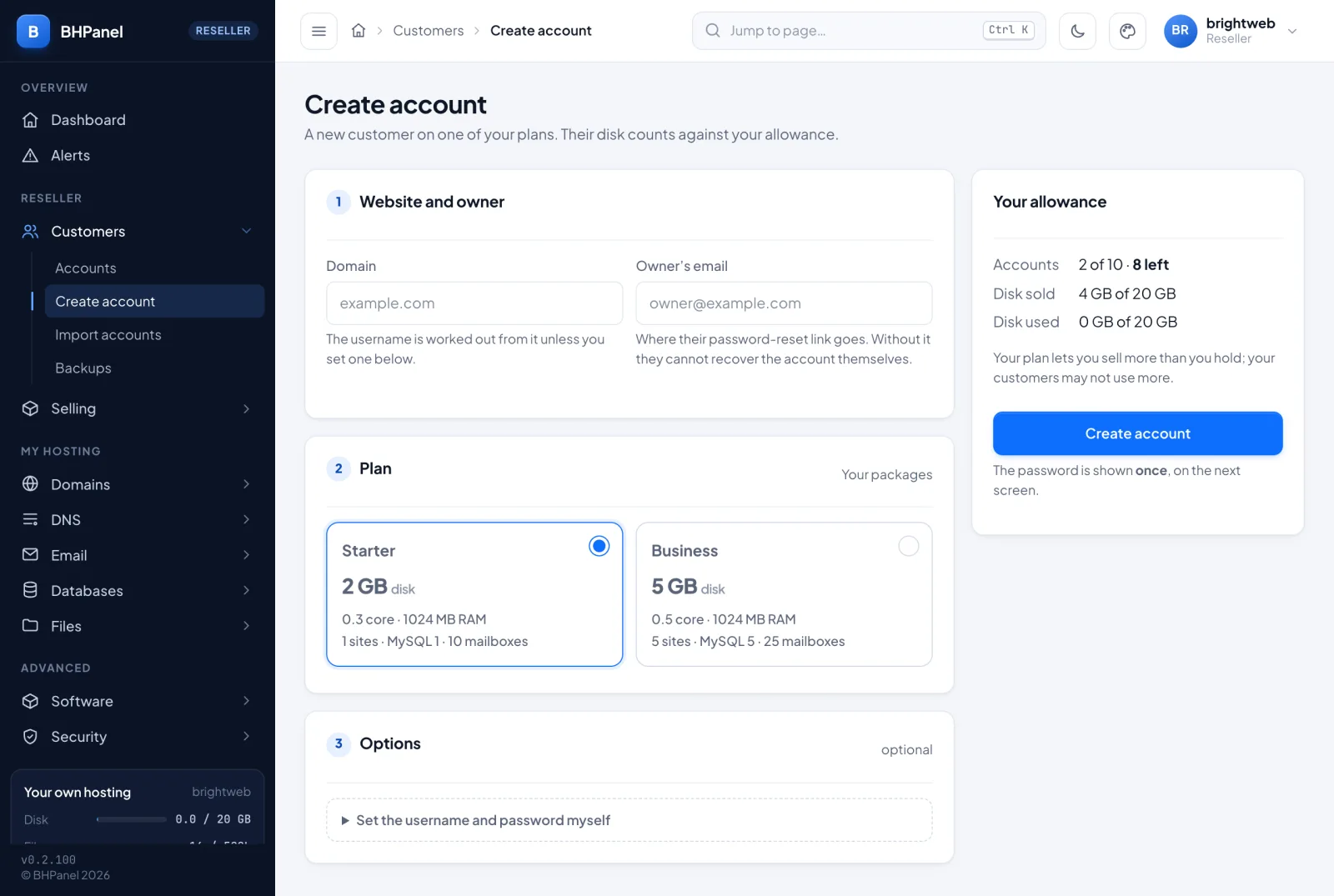
Open Customers › Create account. On the right, Your allowance shows how many accounts you have left and how much disk you have sold. The Create account button is off when you have used every account your plan allows.
- Under Website and owner, type the Domain. The customer's first website is created for it.
- Type the Owner's email. Their password-reset link goes there. Without it, they cannot recover the account themselves.
- Under Plan, pick a card. Each shows the disk, CPU, memory, and how many sites, databases and mailboxes it allows. A plan that is larger than your own plan allows is greyed out, with the reason written on it. Plans from your hosting provider are marked server plan.
- Optional: open Set the username and password myself.
- Username - 3 to 16 characters, lower-case letters and digits, starting with a letter. Left blank, it is worked out from the domain.
- Password - left blank, the panel generates one.
- Press Create account.
The next screen, Account created, shows the username, domain, email and password. The password is shown once. Nobody can look it up afterwards, not you and not your hosting provider. Copy it now and send it to the customer yourself. The panel does not email it. If you lose it, set a new one (see below).
If the account was created but the website was not, a notice says why. Add the site from the customer's own Websites page.
Manage a customer
On each row, Manage opens a menu. It lists:
Change plan
Pick another plan and press Change. It applies to the account the next time its limits are applied.
Set a new password
Type a password twice, at least 12 characters, or leave both boxes blank to generate one. Press Set password. The customer is signed out everywhere. A generated password is shown once, like on creation.
Turn off two-factor
This line appears only for a customer who has two-factor sign-in on. Use it when they have lost both their phone and their recovery codes. Press Turn off two-factor. They can then sign in with their password alone. The customer is emailed that you did it, so it never happens quietly. If that email cannot be sent, the panel tells you, and you must tell them yourself. Ask them to turn two-factor on again under Edit profile.
Suspend and unsuspend
Type a reason and press Suspend. The customer's sites stop and they see your reason. Nothing is deleted. You cannot log in as a suspended customer.
For a suspended customer the menu shows Unsuspend instead. Press it and the account is live again.
Terminate
Terminating ends the account for good. Its sites and mail stop, and its disk goes back to your allowance. There is no undo. Suspending is the reversible choice.
- Press Terminate….
- Type the username to confirm.
- Decide on Delete their files too:
- Left unticked, the files are kept on the server, moved aside where the next account cannot be given them.
- Ticked, the files are deleted.
- Press Terminate with the username.
If part of the clean-up fails, such as a mailbox, the panel lists it afterwards.
Log in as a customer
Press Log in on the row. You see the customer's own panel, exactly as they do, without their password. It does not ask for their two-factor code or passkey. Your own sign-in is what proves who you are.
While you are in there, an amber button at the top shows Back to Reseller. Everything you change is changed on their account. Press it to return to your own panel, on the customer list.
You can only open customers you own. A suspended customer cannot be opened. Unsuspend it first.
Packages
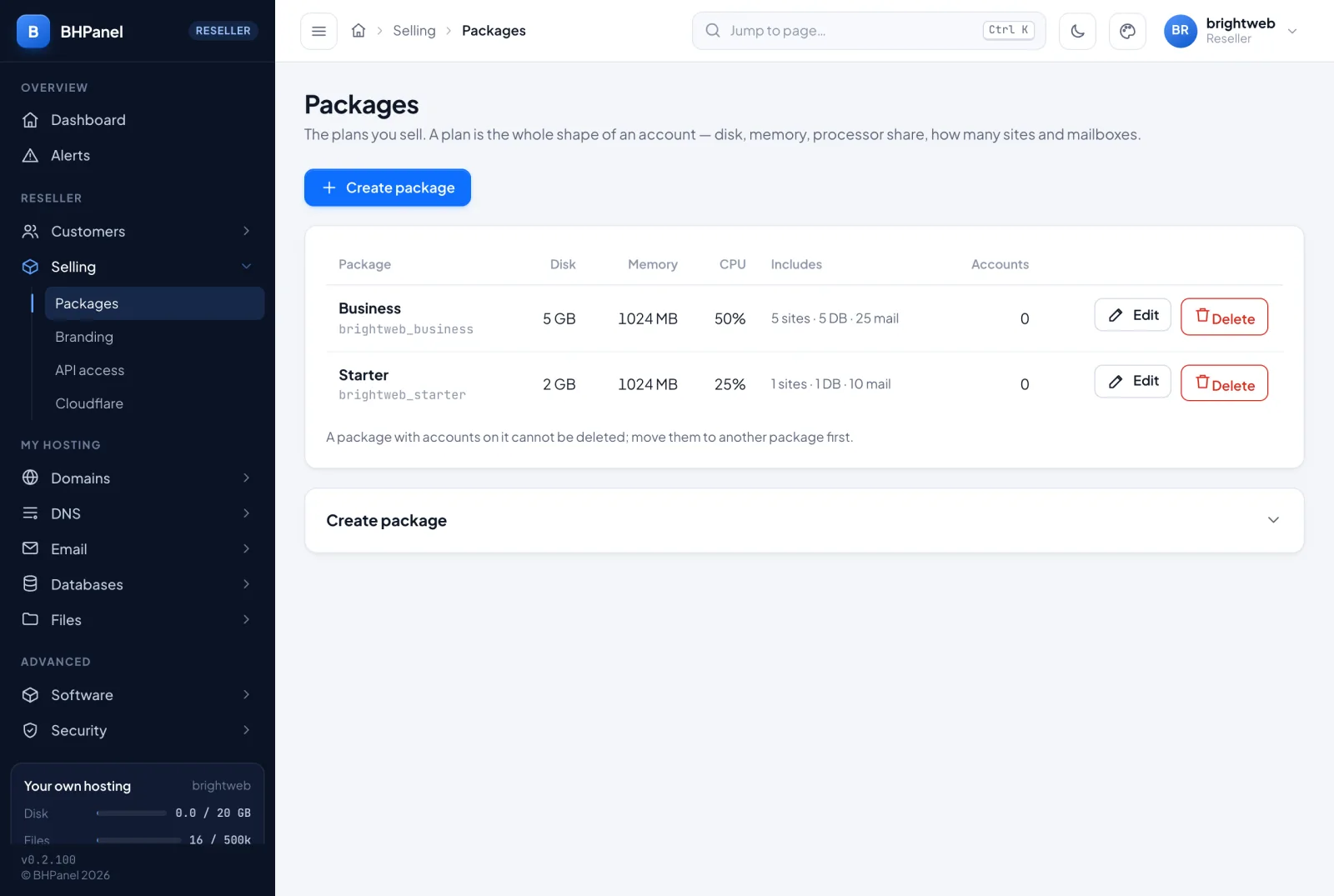
Open Selling › Packages. The table lists your plans with disk, memory, CPU, what they include, and how many accounts use each one. Edit fills the form below with a plan. Delete removes it, but only when no account is on it. Move those accounts to another plan first. Plans from your hosting provider are shown as from the server when it sends any, and cannot be edited.
To make a plan, press Create package (or Edit on an existing one) and fill in the form. You cannot sell more than you hold. Wherever your own plan has a limit, the form says "Up to ... on your plan" and refuses a higher number. Every field starts with a sensible value. Changing a plan applies to the accounts already on it the next time their limits are applied.
Name
- Name - lower case, no spaces. It cannot be changed later.
- Shown as - what your customers see.
Space and speed
- Disk (MB) - how much space the account may use. This counts against your allowance.
- Inodes - the number of files, not their size. A site with a cache hits this first.
- CPU (%) - 100 is one whole processor core.
- Memory (MB) - the most memory the account may use.
- Processes - the most programs the account may run at once.
- PHP workers - how many PHP requests are served at once. 0 is 16. Otherwise use 12 or more.
- I/O weight - the account's share of disk access when the server is busy.
- Disk IO speed (MB/s) - the most it may read and write, each. 0 means no ceiling.
- PHP cache (MB) - memory for compiled PHP. 0 follows the plan's size.
- Bandwidth (GB) - web traffic per month. 0 means not limited.
Counts
For each of these, 0 means no limit (unless your own plan has one):
Sites, MySQL databases, PostgreSQL databases, MongoDB databases, Node.js apps, Python apps, Cron jobs, Mailboxes, FTP logins, and Mail per hour (counted per recipient).
Shared services
The database and web servers serve every account from one process, so one busy site can slow the rest. These limits protect the others:
- Database connections - at once, per database login.
- Longest database query (s) - a query still running after this is stopped.
- Database queries per hour - blunt; usually left at 0.
- Requests per second, per website - per visitor address.
- Request burst - extra requests allowed in a quick spike.
- Connections per visitor - per website.
On a server that runs OpenLiteSpeed, the form marks these last three as not enforced: they work only on the Nginx + Apache web server.
Switches
These appear only when your own plan has the feature, because you can only pass on what you hold:
- Include SSH access
- Server backups - the customers are in the server's scheduled backups and can restore and download them.
- Customers' own backups - they can make and keep backups of their own, counted in their disk.
- Include containers, and Container applications for how many.
Press Create package or Save changes.
What your customers see of you
Your customers see your name, your support contact, and your colour in their panel and in their password-reset emails, instead of the panel's own. Set them under Selling › Branding. See Your brand.