Running the server
The Server menu holds everything that belongs to the machine rather than to one account: its addresses, services, load, web server, updates and logs. This page walks through each item.
Network
Server › Network lists every address the server answers on, read from the network interfaces. For each one it shows the interface, what it is used for, and its reverse DNS.
Reverse DNS is set at your provider, not in the panel. The page checks it and tells you what to set. A green OK means the address names your server and that name resolves back to it. Press Check reverse DNS again after you change it.
Add an address
- Open Add an address.
- Type the address, pick its Prefix and Interface.
- Press Add address.
Your provider must already route the address to this server. An address nobody routes here does no harm; it never receives traffic.
The revert timer. A new address is removed again after 2 minutes unless you press Keep it. If the address was a mistake, you do nothing and it undoes itself. Undo now removes it at once.
Dedicated IPs
A free address can be given to one reseller or to one account:
- Press Assign on the address.
- Choose A reseller, One account or Nobody (free), pick the owner and press Save.
Only the owner's sites answer on that address. The sites also stay reachable on the main address while DNS catches up. DNS records in the owner's zones on this server move to the new address. Outgoing mail keeps using the main address unless you change it (see below).
Dedicated IPs need the Nginx + Apache web server. Plans can also hand out a free address; see plans.
IPv6
If your provider gave the server an IPv6 address, one switch controls it: Turn IPv6 on or Turn IPv6 off. The table under it shows, service by service, whether each really answers over IPv6. If one does not, press Apply again.
Outgoing mail stays on IPv4 until the IPv6 address has reverse DNS, because Gmail and Outlook refuse mail from an address without it. If you are signed in over IPv6, switching it off ends your session.
Which address the panel uses
Under Which address the panel uses you choose the address for new websites, for outgoing mail, and for ns1 and ns2. For mail, pick an address whose reverse DNS is OK. See mail.
Look up an address or name asks public resolvers, so you see what the internet sees.
Services
Server › Services shows what runs on the server, its version, whether it is running, and whether it starts at boot.
- Restart a running service, or Start a stopped one.
- Stop… needs two clicks and warns you that anything relying on the service stops working.
- Install appears for a service the panel can add.
The web server and sshd can be restarted but not stopped, because stopping either could lock you out. The panel's own daemon and web page have no buttons at all.
Load
Server › Load shows who used the server's shared capacity in the last 24 hours. The top shows how much CPU the database and web servers used. The table lists accounts, closest to a limit first:
- CPU held back is how much of the time the account's CPU limit slowed it down. This is the CPU throttling.
- Memory limit hits counts times it ran into its memory limit.
- PHP workers full counts times all its PHP workers were busy.
- Database time, Queries stopped and Requests show the work the database and web servers did for it.
Press Open to see one account's load. Limits come from the account's plan; see plans.
Web server
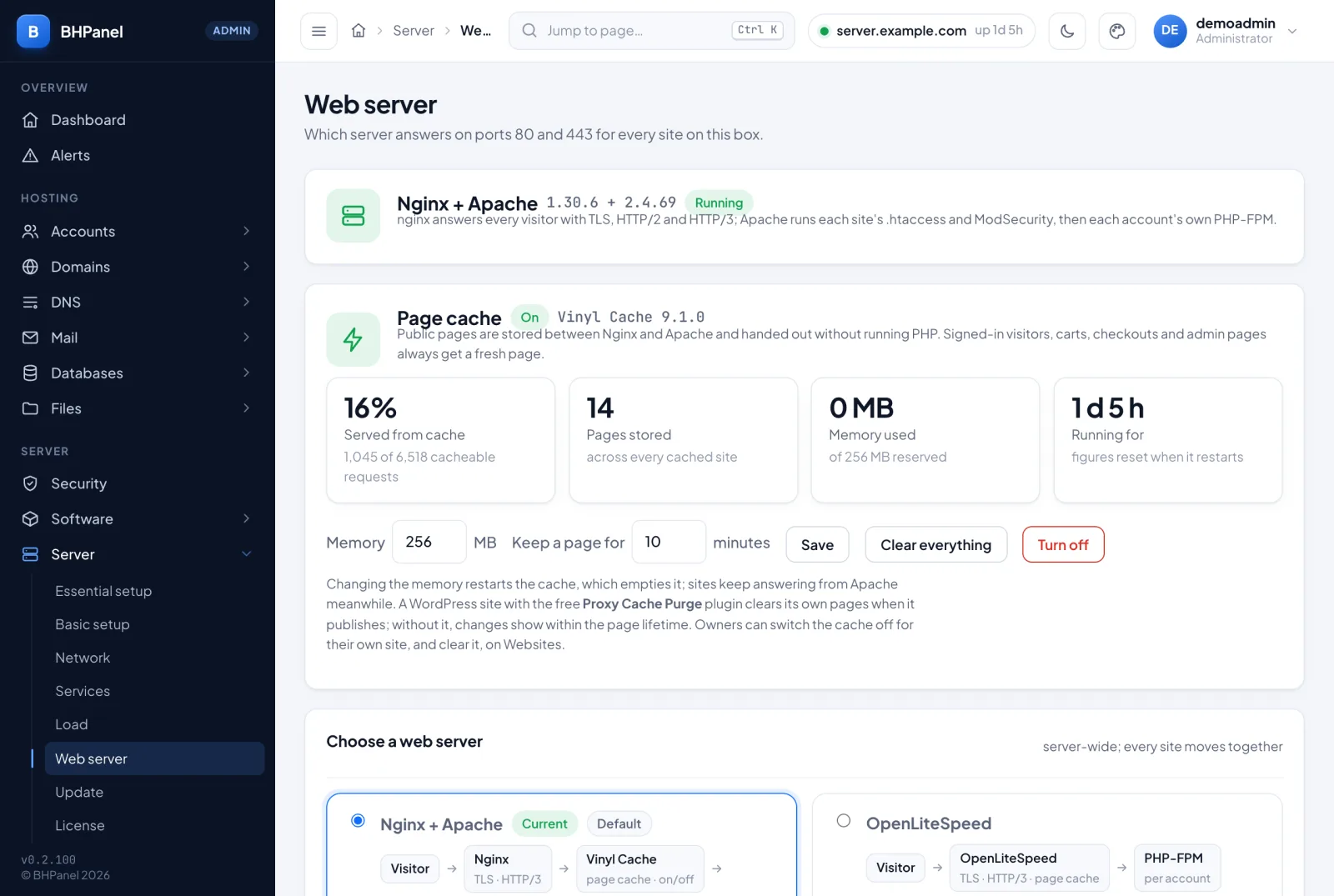
Server › Web server shows which server answers on ports 80 and 443 for every site.
| Nginx + Apache | OpenLiteSpeed | |
|---|---|---|
.htaccess |
Everything | Rewrite rules only |
| Page cache | Vinyl Cache, any site | LiteSpeed Cache plugin (WordPress) |
There is no "Nginx only", because Nginx ignores .htaccess.
Switch live
- Under Choose a web server, pick the other one.
- Tick the box that says every site is unreachable for a few seconds.
- Press Switch.
The panel installs the new server beside the running one, checks its configuration, records how every site answers, swaps them, and checks every site again. Only check — don't switch runs the first steps and changes nothing.
Switching back
If any site answers worse after the swap, the panel switches back on its own and tells you why. Nothing is left changed. To go back by choice, pick the old server and press Switch again.
Page cache
With Nginx + Apache, Page cache keeps public pages for Keep a page for minutes and hands them out without running PHP. Signed-in visitors and carts are never cached. Press Turn on (no downtime), then use Save, Clear everything or Turn off. On OpenLiteSpeed, Clear every site's cache empties the LiteSpeed Cache.
Update
Server › Update installs operating system updates and updates the panel itself, with an optional reboot. See upgrading.
License
Server › License shows and activates this server's license. See license.
Passkeys
Server › Passkeys has one switch each for Administrators, Resellers and Customers. Unticking a role stops its passkeys signing in and hides the option from its logins. The passkeys are kept; tick it again and they work again. Password sign-in is never affected.
Passkeys need the panel's own name with a valid certificate. Browsers refuse them on an IP address. Set the name under Server › Basic setup.
Below the switches, every passkey on the server is listed. Search, filter by role, and Remove one. It stops signing in at once; the person's password and other passkeys are unchanged.
DNS cluster
Server › DNS cluster connects this server to others that answer DNS for your zones. See DNS.
Cron jobs
Server › Cron jobs has three tabs:
- Server (root): jobs you add here run as root. Jobs installed by other software are shown below, but not edited.
- Accounts: every account's jobs in one list. Filter by account, or by last run failed or paused.
- Settings: the Shortest interval and Longest a job may run for customers' jobs. The server's own jobs are not limited. How many jobs an account may have is set per plan.
Press New cron job to add one. For any job you can switch it on or off, Run now, read the Output, Edit or Delete. A job never runs on top of itself.
Terminal
Server › Terminal opens a shell on the server in your browser. It runs as a named Linux user, never as root. Use sudo for anything privileged; the system records each use under your name.
- Turn on two-factor authentication for your login first. The terminal stays unavailable without it.
- Press Switch the terminal on. This creates your Linux user if needed.
- Press Open a terminal.
The terminal switches itself off after four hours. Switch it off now ends any open session. The panel records that a session opened and closed, not what you typed.
Jobs
Server › Jobs lists everything the server did in the background: installs, updates, scans and web server switches. Filter by Running, Failed or Done, or search. Open a job to see its progress lines and any error.
Leftovers
Server › Leftovers lists what deleted accounts and removed applications left behind: Kept homes, Server backups, Restore points and App backups. Each is kept for the number of days set under Settings (7, 14, 30 or 60), then removed by the server. While a deleted account's home is kept, it counts against the reseller who owned it.
For each item:
- Keep longer adds 7, 14 or 30 days, or keeps it Until I remove it.
- Remove now deletes it at once, after you type the account name. This cannot be undone.
Tick the mail option in Settings to be mailed a day before an item is removed. Remote copies of backups are not listed; see backups.
Audit log
Server › Audit log records every privileged action, successful or refused: when, the action, who asked, the result and its arguments. It shows the most recent 100 entries; choose 50, 100, 250 or 500 under the table. The panel cannot edit the log.
See also security.