Files and backups
Everything under Files in the menu: the file manager, the trash, FTP logins, backups and the permission fixer. All of it works only on your own account.
File manager
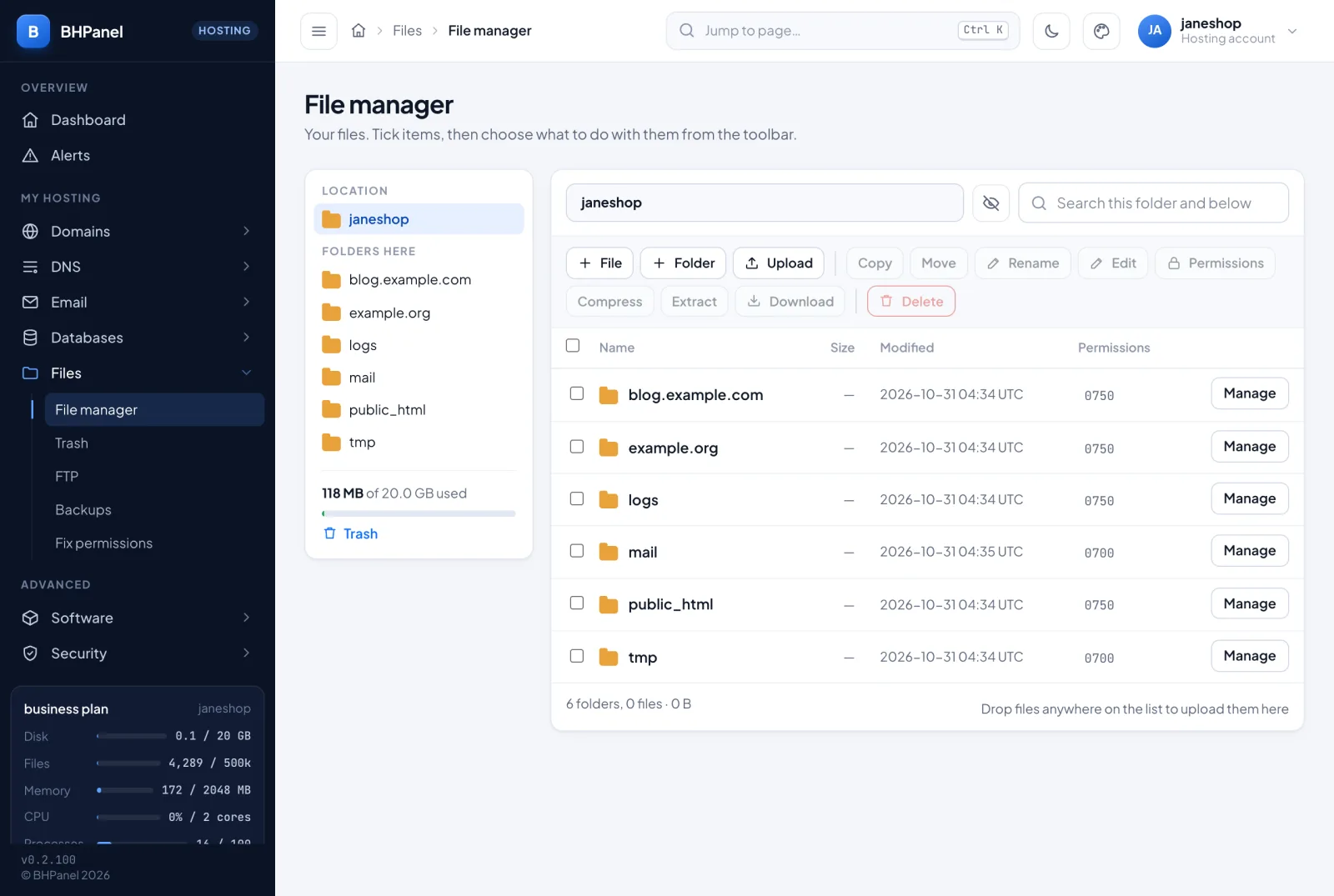
Open Files › File manager. The left side shows your location and the folders in it. The list shows each item's name, size, modified date and permissions.
To act on items, tick them in the list, then use the toolbar. Shift+click ticks a range, Ctrl+A ticks the whole folder, and Clear selection unticks everything. Each item also has a Manage menu with the actions for that one item.
Use the arrow for Up one level. The eye button switches Show hidden files and Hide hidden files. The search box (Search this folder and below) looks in the current folder and everything under it.
Upload
- Click Upload.
- Choose one or more files. Tick Replace files that have the same name only if you want that.
- Click Upload.
Each file can be up to 256 MB. You can also drop files anywhere on the list.
New file and new folder
Click File or Folder, type a name and click Create file or Create folder. It is made in the folder you are looking at. A new file is empty.
Edit a file
Tick one file and click Edit, or choose Manage › Edit. Type your changes and click Save. Cancel leaves without saving.
- Press Ctrl+F in the editor, or use Find & replace, to find text. There are Replace and Replace all buttons and a match-case box. Replace all is one edit, so one Ctrl+Z undoes it.
- Each save keeps a copy of the version before it. Under the editor, Undo the last save puts that copy back. Only the last save is kept, and putting it back keeps the current version, so you can switch back.
Rename, move and copy
- Rename: tick exactly one item, click Rename, type the new name.
- Move: tick items, click Move, give the folder to move them into. Each keeps its name.
- Copy: tick items, click Copy, give the folder. Each keeps its name, and nothing already there is overwritten.
Download
Tick one file and click Download, or choose Manage › Download. To download a folder, compress it first.
Permissions
Tick items and click Permissions. Tick Read, Write and Run / open for the owner, group and others, or type a Mode such as 0644. Click Apply. For one item you can also use Manage › Permissions.
If a site shows a 403 or a blank page after an upload, see Fix permissions below before changing modes by hand.
Compress and extract
- Compress: tick items, click Compress, give an Archive name, pick a Format and click Create archive. The archive is saved in the current folder.
- Extract: tick one archive (
.zip,.tar,.tar.gzor.tar.bz2), click Extract, choose the folder and click Extract.
Delete
Tick items and click Delete. They go to the Trash, and the button says Move to Trash. You can instead tick Delete permanently, skipping the Trash. That cannot be undone. Items that are already in the Trash are deleted for good.
Trash
Open Files › Trash (there is also a Trash link in the file manager). It lists what you deleted, where it came from, its size and when it was deleted.
Items stay in the Trash until you remove them; nothing is emptied automatically. Deleted items still count against your disk until then.
To bring something back:
- Click Manage on the item, then Restore.
- Check the Put it back at path. If the panel has no record of where it came from, you must type one.
- Tick replace whatever is there now only if you want to overwrite.
- Click Restore.
Manage › Delete for good removes one item permanently. Empty the trash removes everything and gives the disk space back. There is no way back after either.
FTP
Open Files › FTP. Each login is locked inside one folder and cannot see anything above it. The list shows each login, its folder and when it was created. Your account's main login covers the whole account.
Create a login
- Click New FTP login.
- Enter a Login: 3 to 32 characters, using
a-z,0-9,.,_,-or@. Logins are unique across the whole server, so including your account name helps. - Enter Locked to folder, relative to your home, for example
public_html. Leave it blank for your whole home. - Enter a Password of at least 12 characters, or leave it blank to generate one. A generated password is shown once, so copy it then.
- Click Create login.
On a login, New password changes the password at once. Remove stops the login working and does not delete anything it uploaded. The main login cannot be removed.
Connection details
The How to connect box shows what to enter in your FTP program:
- Host: shown with a Copy button.
- Port: 21.
- Encryption: Explicit TLS (FTPS).
Plain FTP is refused. FileZilla, WinSCP and Cyberduck all support FTPS.
If your plan includes SSH, SFTP also works in the same programs on port 22, using your account's own login.
Backups
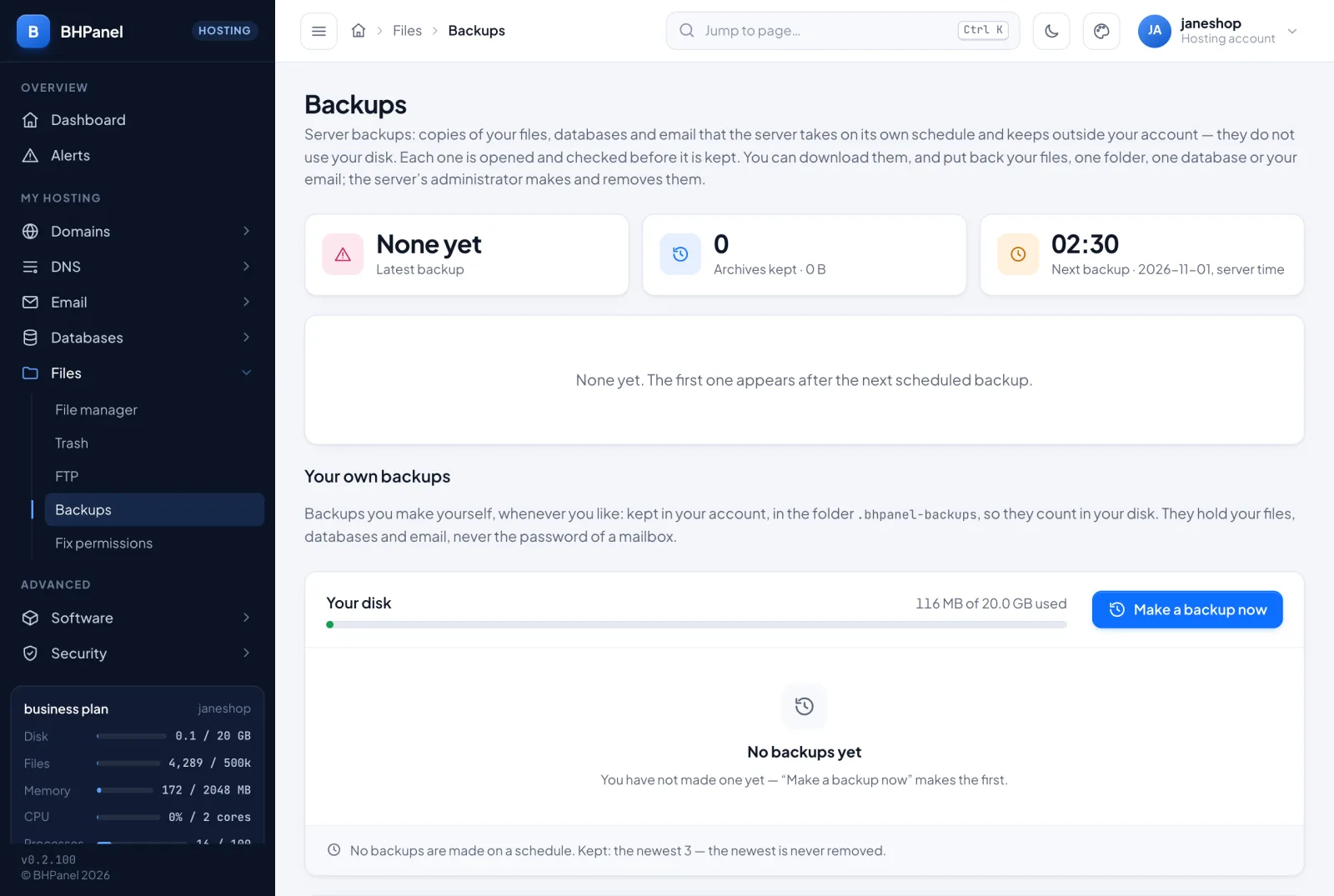
Open Files › Backups. There are two kinds.
Server backups
These are copies of your files, databases and email that the server takes on its own schedule. They are kept outside your account, so they do not use your disk. Your hosting provider makes and removes them. The top of the page shows the latest backup, how many are kept and when the next one runs.
If the page says Off, your plan does not include server backups or your provider has paused them.
For each backup the Contains column lists what is inside, such as files, sites, databases, mail, DNS, SSL, cron jobs, FTP users and account settings.
- Download saves the backup file. An older backup may say Ask the administrator for a copy.
- Restore opens a form where you pick one part to put back.
Restore
Choose what to restore. You can choose any part the backup holds:
- Files: all of them, or one folder.
- One database: its contents are replaced by the backed-up copy. The database has to exist. You must tick a confirmation box.
- Email: messages come back for a domain, or one mailbox. Mailboxes, passwords and filters stay as they are.
- DNS records, certificates, cron jobs, FTP users, account settings, site settings, container app: each has its own form, and the ones that replace what you have ask you to confirm.
Restores run only into your own account, and files come back inside your account's limits. The page follows the restore while it runs.
Your own backups
If your plan allows it, Your own backups lets you make backups yourself. Without that, the page says so and backups already there stay yours to download and delete.
- Check the disk bar. These backups are kept in a hidden backups folder in your account, so they count in your disk.
- Click Make a backup now. Reload to follow it. They hold your files, databases and email, never a mailbox password.
- Use Download, Restore (same parts as above) or Delete on each one. Delete removes it for good, not to the Trash.
Open Schedule and how many to keep to set Make a backup to Only when I ask, Every day or Every week, with a time (server time), a weekday for weekly, Keep the newest, Remove backups older than (days) and Compression. 0 means no limit, and the newest backup is never removed.
Your remote
Your remote is a place of your own where your backups are copied: FTP, SFTP, S3 or Google Drive. You add one under Your remote, fill in the fields for that type and click Test and save. A test file is written and removed before it is saved. Once set up you can Test it again, Change… it or Remove it.
- Copy to remote sends a backup there. Backups copied show on your remote.
- Bring back copies one from the remote into your account, which uses your disk.
- Removing the remote keeps the copies already there.
Plain FTP is available but sends everything unencrypted, so use it only if nothing else works.
Fix permissions
Open Files › Fix permissions when a site gives a 403, a 500 or a blank page after an upload, an unzip, a migration or a script. These can leave files that the web server, PHP or mail cannot read. The tool puts ownership and permissions back the way the panel sets them up.
- Choose what to fix: Everything, Websites only, Mail only or One folder (then type the folder, such as
public_html/shop). - Leave the options as they are unless you know you need another. By default it keeps private files such as
wp-config.phpand.envstricter and removes world-writable permissions. - Click Check first to see what would change, then Fix now.
It never follows links and stays inside your own files.