Signing in and your profile
This page shows how to sign in to your hosting panel, how to protect your login with two-factor or a passkey, and what to do if you get locked out. Your own login settings are all under one menu entry, Edit profile.
Sign in
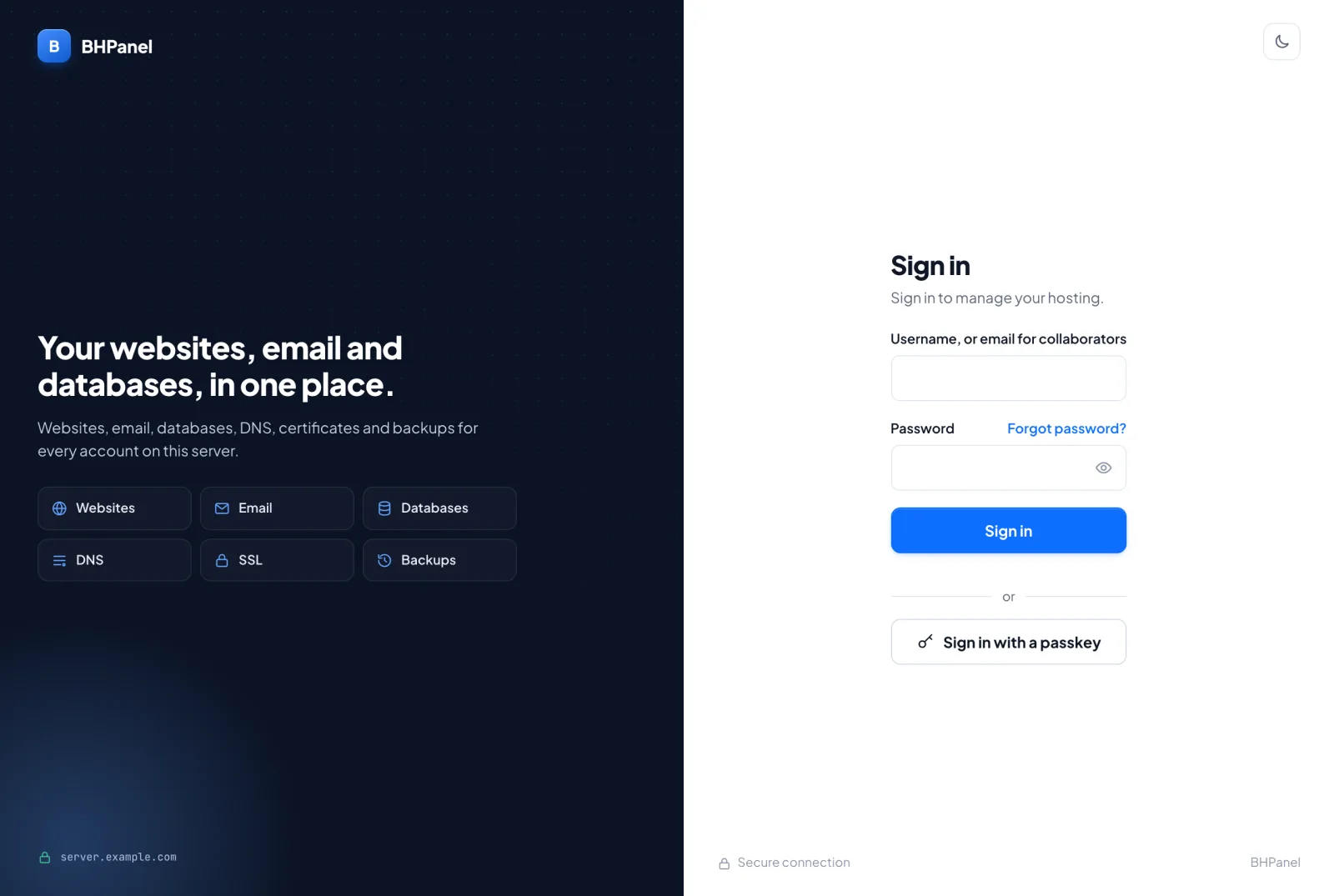
Open the panel at the address your hosting provider gave you.
- Type your Username. Collaborators type their email address here instead (see the last section).
- Type your Password. Use the eye button to check what you typed.
- Press Sign in.
If you turned on two-factor, the next page is Enter your 6-digit code. Open your authenticator app, type the code it shows, and press Verify and sign in. To go back, press Cancel and start again.
If a password is wrong, the panel says so. After 5 failed tries, sign-in pauses for 15 minutes.
Sign in with a passkey
If you added a passkey (see below), press Sign in with a passkey under the form. Your device asks for your fingerprint, face or PIN. A passkey counts as both your password and your second factor, so there is no code step.
The button only shows where passkeys work. If you opened the panel by an IP address instead of its name, or your hosting provider turned passkeys off, you will not see it. Sign in with your password instead.
Forgot password?
- Press Forgot password? next to the password field.
- Type your username (not your email address) and press Send reset link.
- Open the email. The link works once and expires after 60 minutes. If the link will not open, press I have a code and paste the code from the email.
- Choose a new password of at least 12 characters, type it twice, and press Set new password.
Setting a new password signs you out everywhere else. Two-factor stays on if you use it.
If nothing arrives, check your spam folder and check that you typed the username you sign in with. If you cannot reach the email address on your account, or reset by email is not turned on, your hosting provider can set a new password for you. Never send them your old or new password.
Edit profile
Open the user menu and choose Edit profile. It is the only entry in that menu. It opens a page with these tabs:
- Photo
- Email address
- Password
- Two-factor
- Passkeys
Photo
Edit profile › Photo sets the picture beside your name in the top bar.
- Under Use, choose Gravatar (the picture linked to your email address at gravatar.com), My photo or Initials, and press Use this.
- To use your own, upload a PNG or JPEG of up to 750 KB under My photo and press Save photo. It is cropped to a square. Then choose My photo under Use, because uploading does not change your choice.
- To delete it, press Remove photo.
Email address
Edit profile › Email address is where password resets and the panel's notices are sent. Without an address you cannot reset a forgotten password yourself.
- Type the New email address.
- Type Your current password.
- Press Send confirmation link.
- Open the email sent to the new address and confirm within 24 hours. The address changes only then.
Your current address is told about the change. Until you confirm, the page shows the pending address. If you ask again, the new request replaces the old one.
Password
Edit profile › Password changes your panel login password.
- Type your Current password.
- Type a New password of at least 12 characters, then Confirm new password.
- Press Change password.
Every other place you were signed in is signed out. This browser stays signed in.
Two-factor
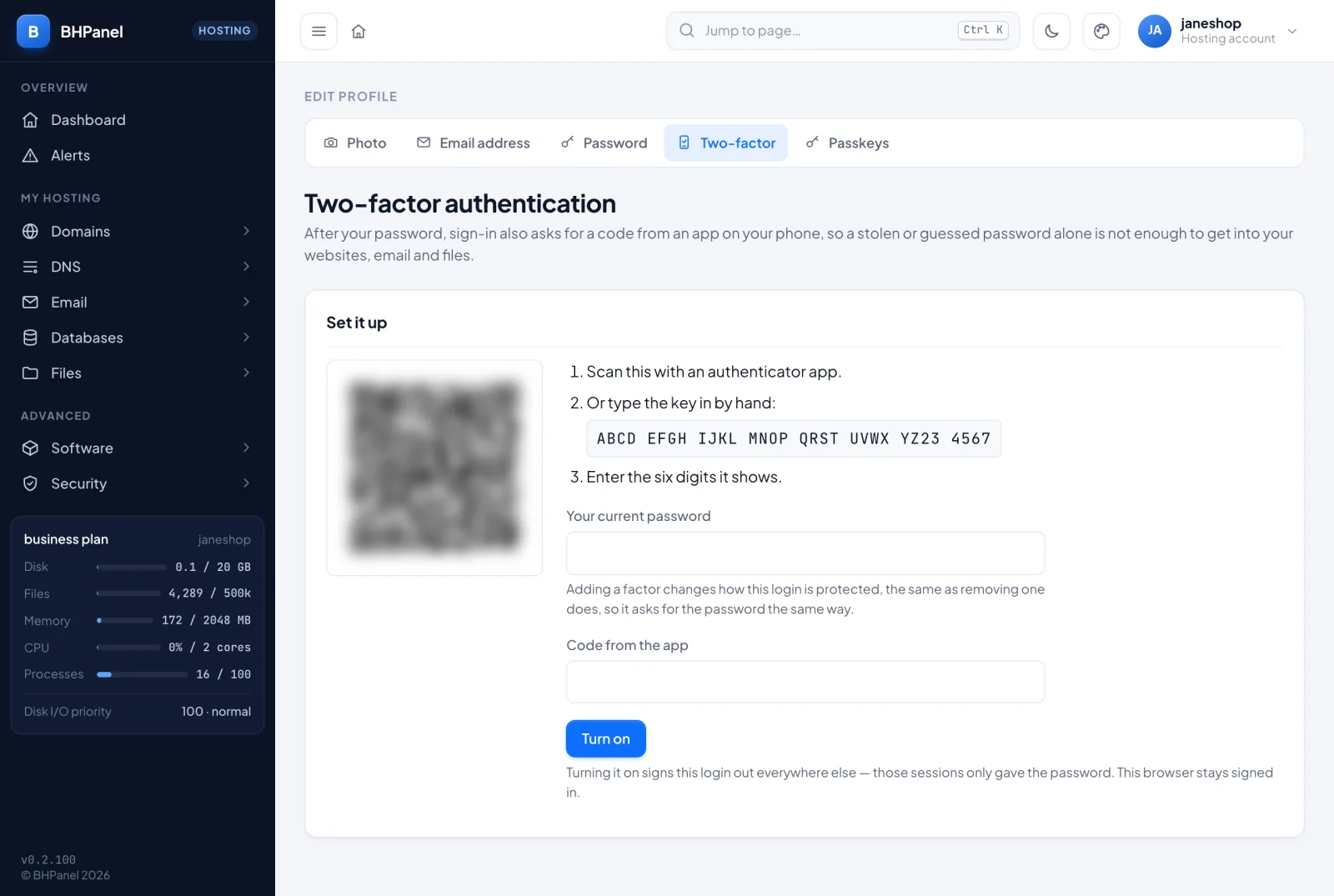
Edit profile › Two-factor adds a code from an app on your phone after your password. A stolen or guessed password alone is then not enough. It is optional.
To turn it on:
- Open the tab. Scan the QR code with an authenticator app. If you cannot scan it, type the key into the app by hand.
- Type Your current password.
- Type the six digits the app shows in Code from the app.
- Press Turn on.
The code is checked before two-factor is switched on. Turning it on signs this login out everywhere else. This browser stays signed in.
The panel then shows your Recovery codes. They are shown once. Each works one time, in place of an app code. Use Download or Copy, and keep them somewhere other than the phone with the app. Then press Done.
The tab shows how many recovery codes are left. When it says Running low, turn two-factor off and on again for a fresh set.
To turn it off, open the tab, type Your password, and press Turn off. This works only in a session that signed in with your code or a passkey: if you signed in some other way, sign out and back in with your code first.
Passkeys
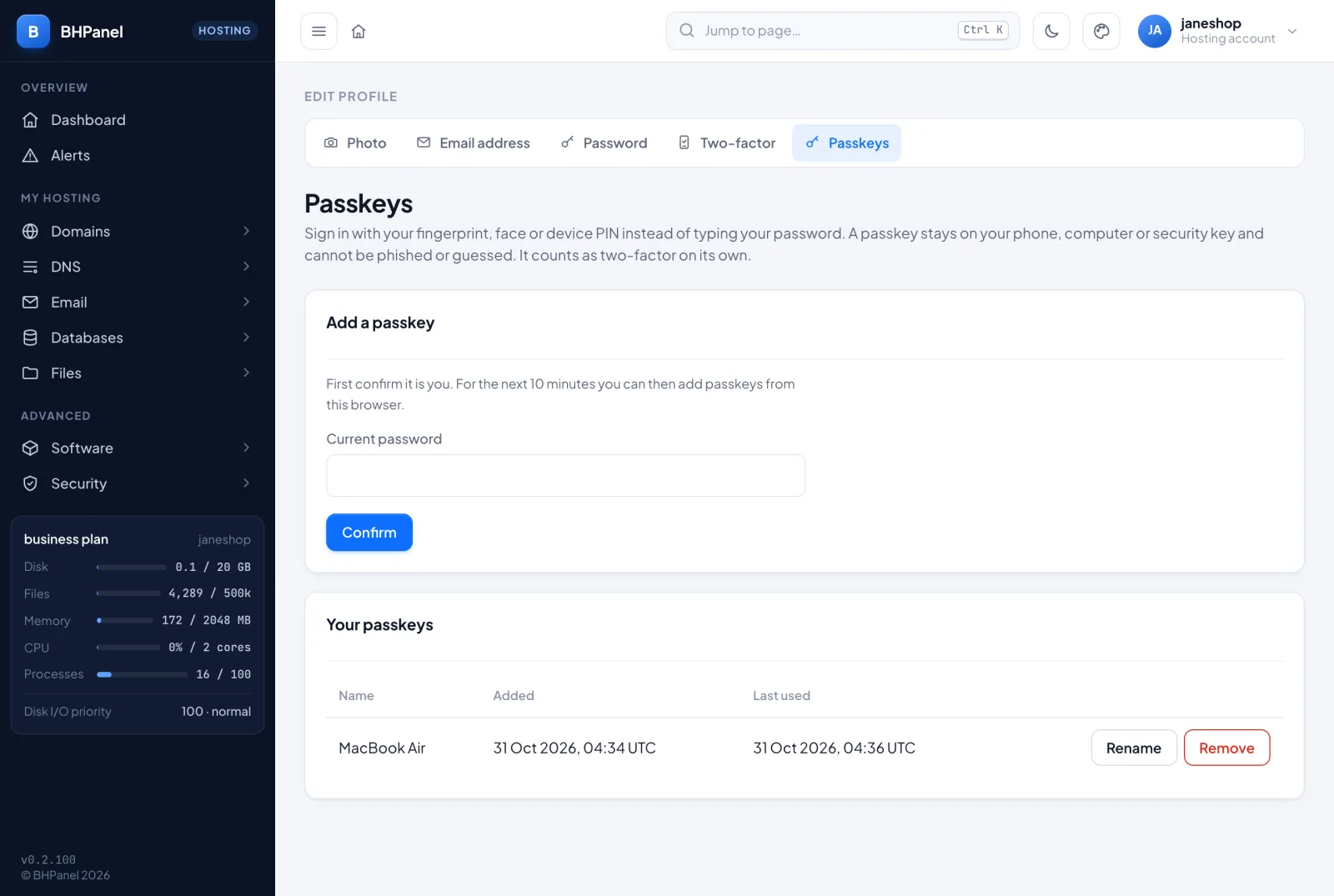
Edit profile › Passkeys lets you sign in with a fingerprint, face or device PIN. A passkey stays on your phone, computer or security key. If you add several, name each one so you can tell them apart.
To add one:
- Open the tab. If it asks you to confirm it is you, type Current password and press Confirm. If two-factor is on, also type the Two-factor code (from your app, or a recovery code). This is good for 10 minutes in this browser.
- Type a name, for example "My MacBook".
- Press Add a passkey and follow your device's prompt.
A message is emailed to your address when a passkey is added.
Under Your passkeys each row shows its name, when it was added and when it was last used. A Synced label means the passkey is saved to a password manager or cloud account, so it works on your other devices too.
- Rename changes the name.
- Remove stops that passkey signing in at once. Also delete it on the device itself, in its password manager or settings, or the device keeps offering it.
One login can have up to 10 passkeys. If your hosting provider turned passkeys off, the tab says so.
If you are locked out
Try these in order.
- Forgot your password: use Forgot password? on the sign-in page, as described above.
- Lost your phone but have recovery codes: at the code step, type a recovery code instead of the app code. Each works once. After you are in, turn two-factor off and on again with your new phone.
- Lost your phone and your recovery codes: ask your hosting provider to turn two-factor off for your account. You are emailed when they do. Then sign in with your password and set two-factor up again.
- Lost the device holding a passkey: sign in with your password and remove the passkey under Edit profile › Passkeys.
- Paused after 5 wrong tries: wait 15 minutes, or ask your hosting provider.
Collaborators
A collaborator is someone the account owner invited to help. They sign in with their email address and password on the same sign-in page. If the account requires it, the panel asks them to set up two-factor with an authenticator app. If they can work on more than one account, they choose one under Which account?.
Collaborators do not have Edit profile: their password and two-factor are set up when they accept the invitation.