Websites and domains
This page covers everything about your domains and the websites on them: adding one, pointing it at the server, getting a free HTTPS certificate, choosing a PHP version, and watching traffic and usage. Your plan, set by your hosting provider, decides how many websites you can have and how much traffic and CPU they can use.
Your home page
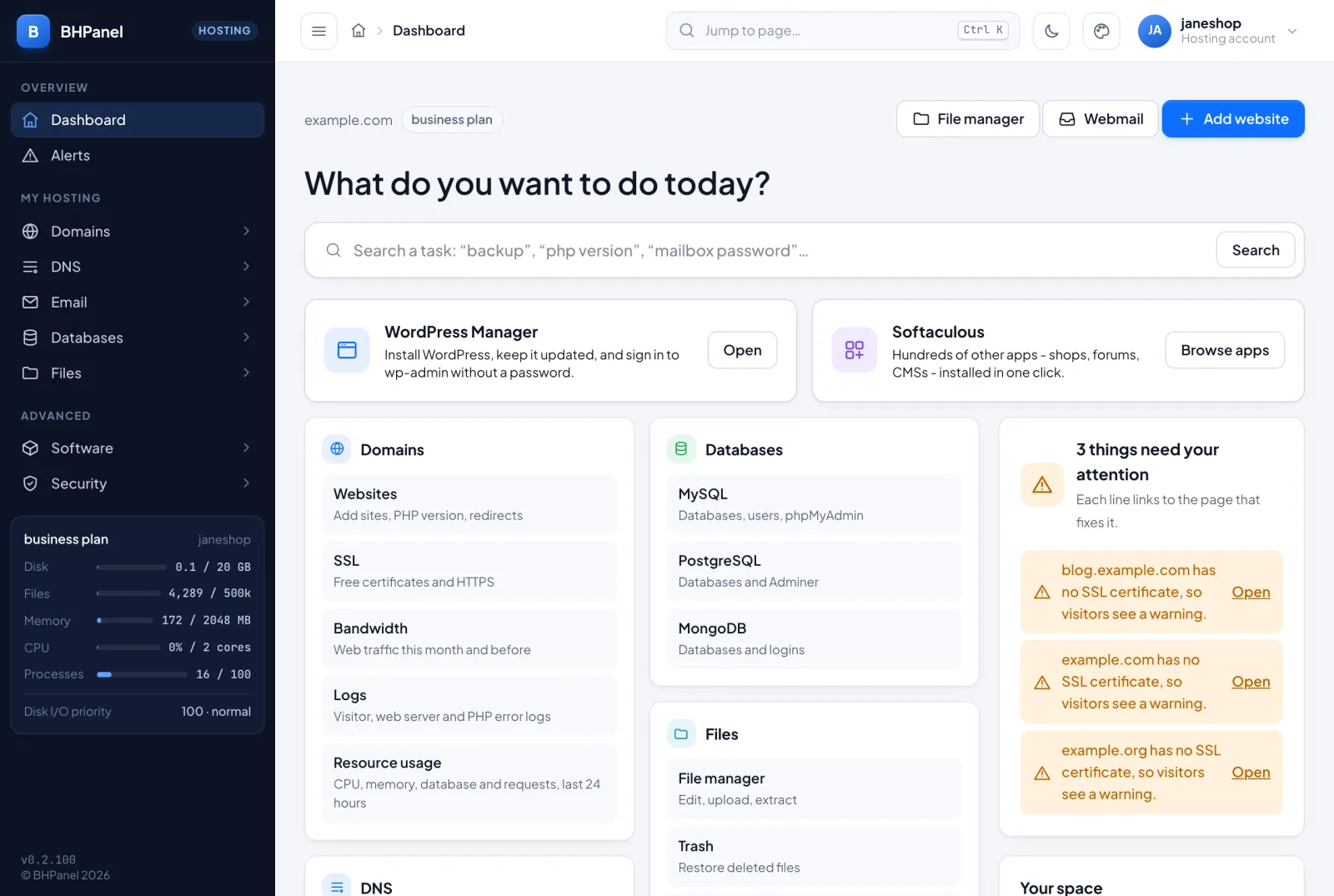
The home page shows your main domain and your plan. Buttons at the top open the File manager, Webmail and Add website. The Websites card lists your sites, with a Manage all link. Below it, a card tells you either "All good" or how many things need your attention.
Add a website
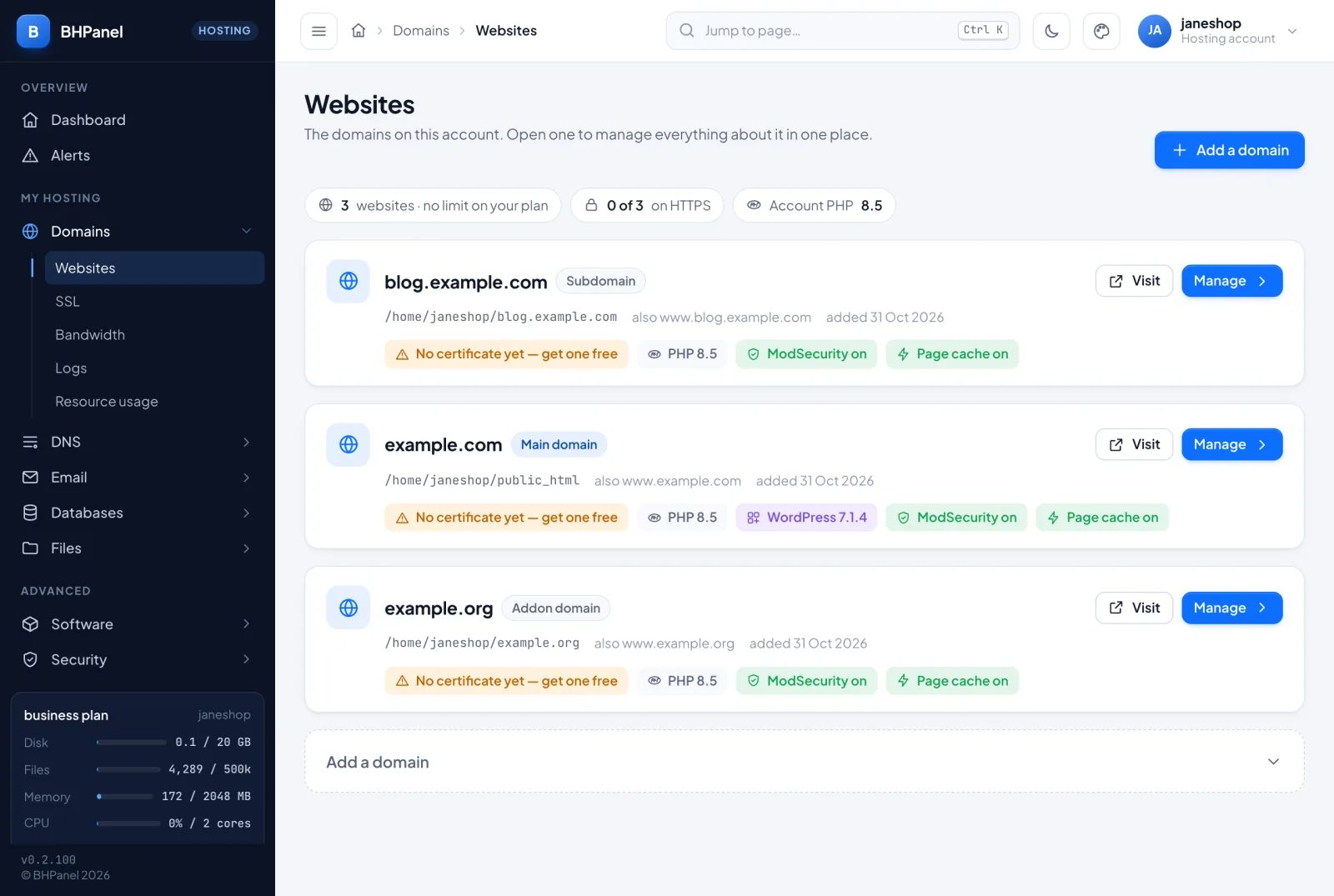
Go to Domains › Websites. Each site is a card showing its domain, its folder, its HTTPS status and its PHP version. Visit opens the site and Manage opens its page.
To add one, press Add a domain (or Add website on the home page).
- Under Kind of domain, choose Addon domain (a new domain you own, with its own website) or Subdomain (a name under one of your domains here).
- For an addon domain, type the Domain, for example
example.com. For a subdomain, type the name, then choose which of your domains it goes under. - Optionally, type a Folder. It is inside your home directory. If you leave it blank, it is named after the domain.
- Press Add.
A subdomain can go only under your main domain or an addon domain, not under another subdomain. The main domain is the one your account was created with. Only your provider can change it, so contact support.
If your plan's website limit is used up, the Add a domain button is replaced by a note. Remove a site or ask your provider for a bigger plan.
Point a domain at the server
An addon domain does not answer until its DNS points at this server. There are two ways:
- At the company where you registered the domain, set its address (A record) to this server's address.
- Or, at the registrar, set the domain's nameservers to the ones your hosting provider gives you. The domain's page in DNS › DNS zones then says whether its DNS is answered by this server, and which nameservers answer it now.
When this server runs the DNS for a subdomain's parent domain, a subdomain needs nothing in DNS.
To check, open the website, go to the DNS tab and read Where this domain points. It asks Google's and Cloudflare's public DNS what they answer, and shows for each name whether it "points here", is "partly elsewhere", "points elsewhere" or has "no record". "Partly elsewhere" usually means an old IPv6 (AAAA) record or a second A record is left at the old host. Remove it. After you change DNS, the old answer can take minutes, sometimes up to a day. Press Check again to repeat the check. Edit the records themselves on DNS › DNS zones.
One website's page
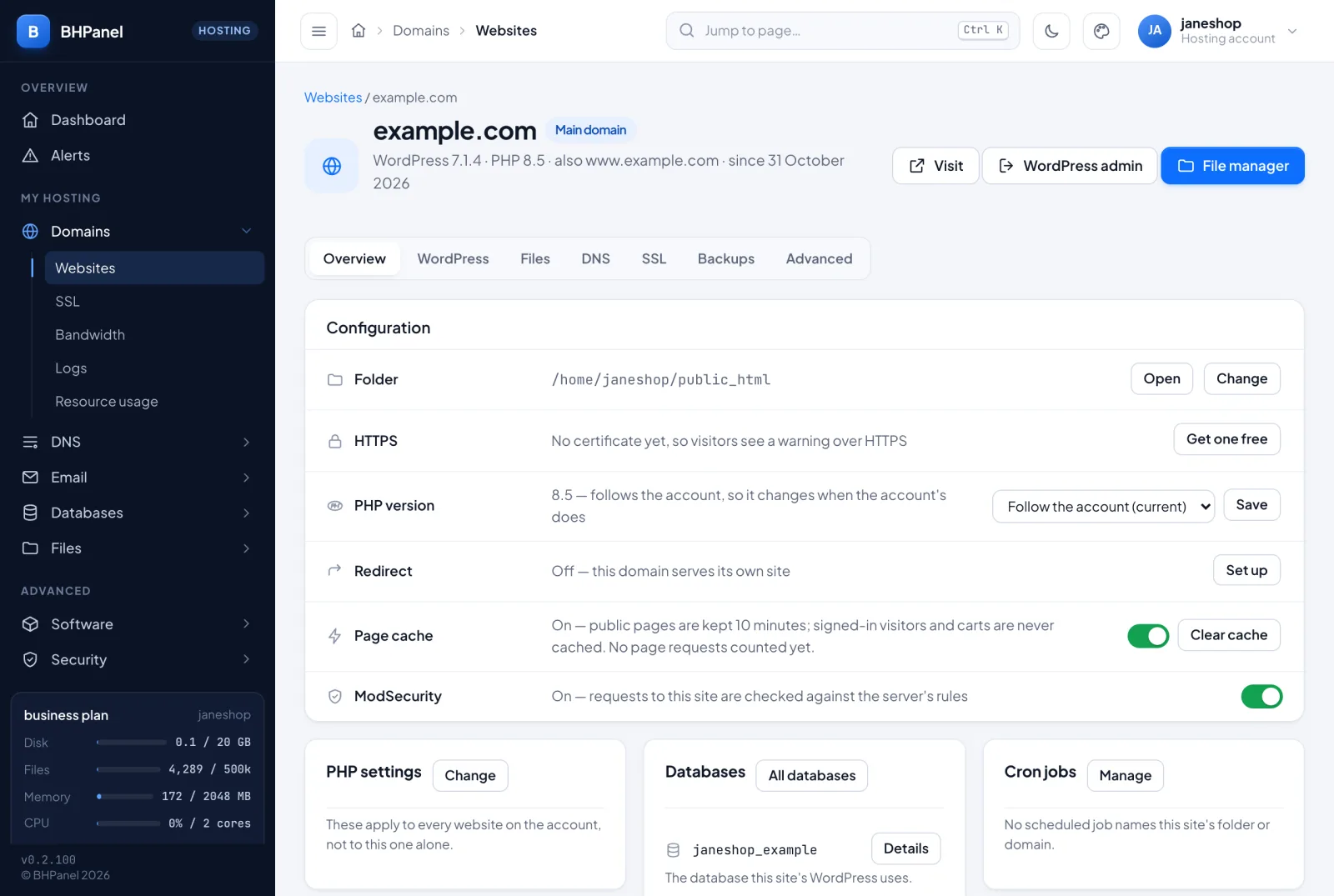
Open a site with Manage. It has these tabs: Overview, WordPress, Files, DNS, SSL, Backups and Advanced. The Overview tab has these settings:
- Folder: the folder the site serves. Open shows it in the file manager. Change lets you pick another folder inside your home directory. Nothing is moved or deleted; the old files stay where they are. The main domain always serves
public_html, or a folder inside it. - HTTPS: the certificate, who issued it and how many days are left.
- PHP version: see below.
- Redirect: see below.
- Page cache and ModSecurity: switches that appear only if the server offers them. Clear cache empties the page cache.
Further down, cards show the site's PHP settings, databases and cron jobs. The Advanced tab holds security headers, Node.js and Python applications, git deployment, redirects, webmail addresses and removal. Applications and git deployment appear only if your server has them.
The website list marks a site as suspended or redirecting when it is. Customers have no suspend button on a site; your provider does that.
Redirects
In Advanced, open Redirect and press Set up. Type Send visitors to (for example https://example.com), choose Permanent (301) or Temporary (302), and press Redirect. Everything on that domain then goes to the new address. Browsers and search engines remember a permanent redirect, so use a temporary one while you are still deciding. To undo it, press Stop redirecting.
Remove a domain
In Advanced, press Remove domain…, type the domain to confirm, then press Remove. The site stops being served and its certificate and DNS zone are removed. Your files are kept. Adding the domain again puts the site back. The main domain cannot be removed.
SSL certificates
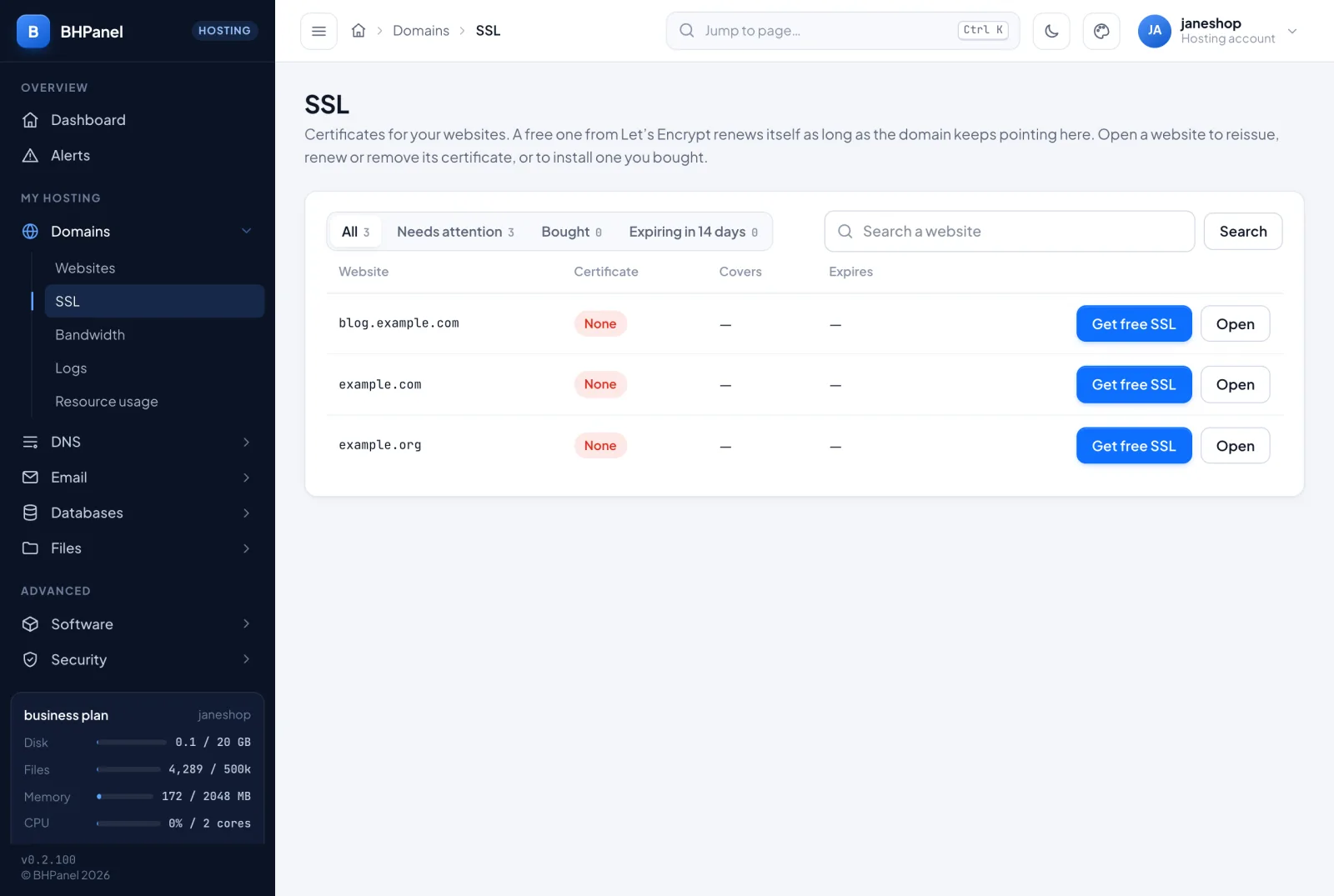
Go to Domains › SSL for every site's certificate: who issued it, which names it covers and when it expires. Open a site's SSL tab to change anything.
- Free certificate. Press Get a free certificate. The names with DNS pointing at this server are ticked. A name that does not point here yet is left unticked, so tick it once it does. A free Let's Encrypt certificate takes a few seconds and renews itself about a month before it expires, as long as the domain keeps pointing here.
- Reissue gets a new certificate covering the ticked names. Renew now renews it at once. Let's Encrypt allows only a few of these a week, so the panel asks you to wait if you use them too often.
- Force HTTPS: Turn on sends visitors who use
http://tohttps://. With it on, Main address lets you pickexample.comorwww.example.comas the one visitors always end up on. WordPress's own address (Settings › General) must match your choice first, or the change is refused. - Remove this certificate… puts the site back on the server's self-signed certificate, and automatic renewal stops.
Use a certificate you bought
Most sites do not need this. Open Use a certificate you bought.
- Under Make a CSR, choose the names, optionally add an Organisation and Country, and press Generate CSR. Copy it to your seller. The private key stays on the server.
- Under Install the certificate, paste the Certificate and the Intermediate / CA bundle your seller sends, then press Check and install. If you made the CSR elsewhere, open I made the CSR somewhere else… and paste the private key.
The panel checks that the certificate matches the key, is in date, covers the domain and has a complete chain before changing anything. A bought certificate does not renew by itself. Install the new one from your seller before it expires.
What an error means
- No certificate yet: visitors see a browser warning on
https://. Press Get a free certificate. - Self-signed: the server's own placeholder, which browsers do not trust. Get a free certificate.
- A name not covered: visitors who use those names get a warning. Reissue adds every name the site answers to.
- Expired: every visitor sees a warning. Press Renew now, or install a new bought certificate.
- Could not be read just now: try again in a moment.
PHP
Go to Software › PHP.
- Version: choose a PHP version and press Change version. This restarts PHP for your account, so a request in flight is dropped. An older version can keep an old application running, but it no longer gets security fixes.
- Settings: Memory limit, Largest upload, Largest form post, Time limit and Form fields. Leave a field blank to use the server's value. Your provider sets a ceiling for each, and asking for more is refused with a message. Press Save settings.
- Restart PHP: Restart PHP for this account clears the code cache. Try it when a file change does not seem to take effect.
A single site can use its own version instead. On its Overview tab, pick one under PHP version and press Save, or choose Follow the account.
Bandwidth
Domains › Bandwidth shows the web traffic of the current month: what you Used, what Your plan allows and what is Left, plus a table of earlier months. It starts again at zero on the 1st and is updated every ten minutes. From 80% a warning appears. At 100%, visitors see "Bandwidth Limit Exceeded" until the 1st of next month, or until your plan is upgraded, which brings the sites back straight away.
Logs
Domains › Logs shows the latest lines of a site's logs, newest at the bottom. Pick the Website and the number of Lines (50 to 1000), press Show, then choose a tab: Visitors (access), Web server errors or PHP errors. Logs are kept to about 10 MB plus five older compressed copies. The full PHP log is logs/php-error.log in the file manager.
Resource usage
Domains › Resource usage shows the last 24 hours against your plan's limits.
- Held back at the CPU limit: the share of the time your sites were slowed because they wanted more CPU than the plan gives.
- Memory limit reached: how often your sites hit the plan's memory limit, so a program was stopped.
- Processes: the most programs running at once.
- All PHP workers busy: how often visitors had to wait because every PHP worker was in use.
- Database time and Database connections: what the database did for you, and any query stopped for running longer than the plan allows.
- Web requests: how many visits, and your busiest second.
If the figures are high, What would help suggests fixes based on them, such as turning on the page cache or a bigger plan. High numbers mean your sites are slowed, not that anything is broken.