WordPress and apps
Install WordPress on one of your sites, sign in to its dashboard with one click, keep it up to date and undo a bad update. Everything is under Software in the menu.
What the list shows
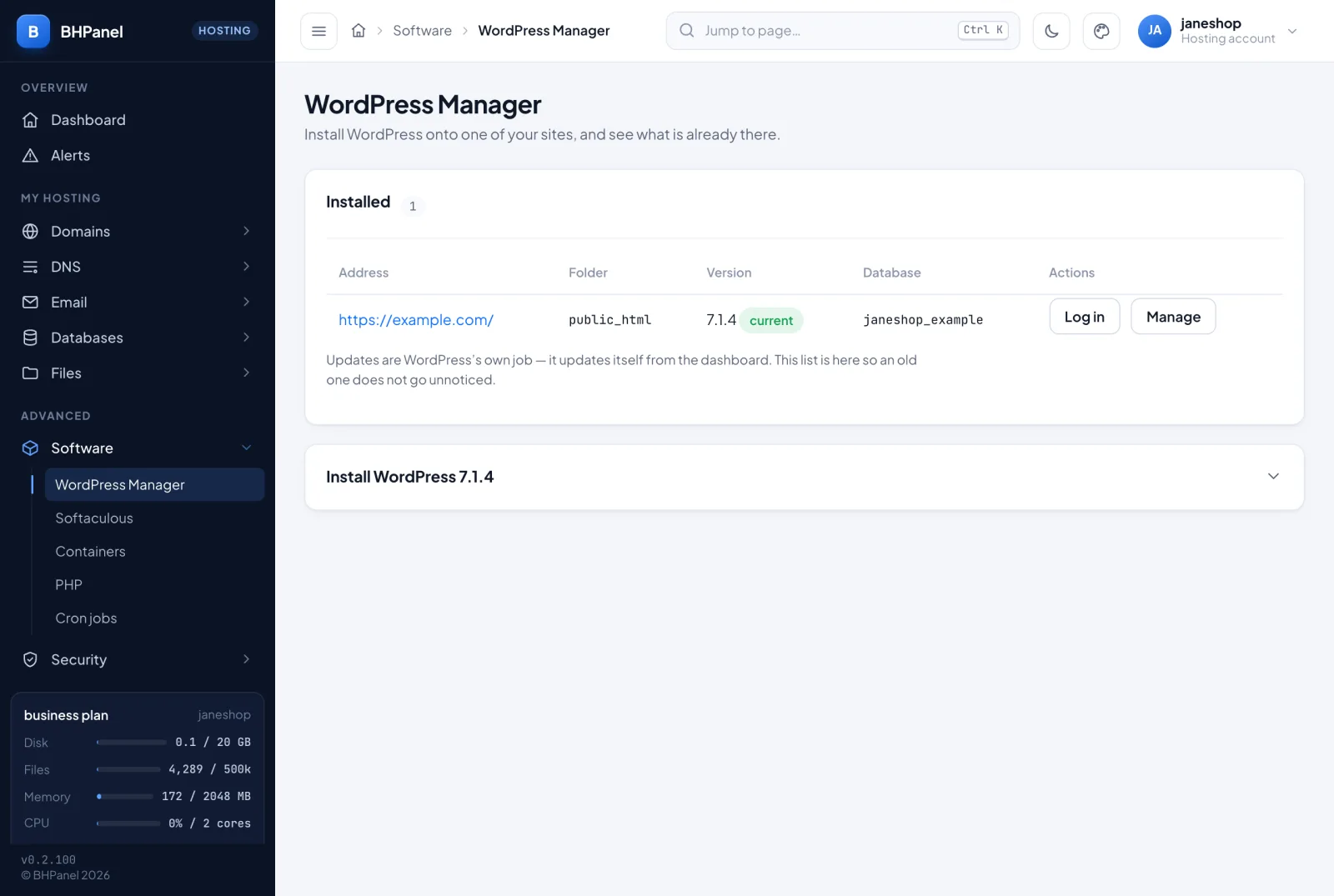
Open Software › WordPress Manager. The Installed card lists every WordPress the panel finds in your account:
- Address: the site it is served at.
- Folder: where it lives inside your account.
- Version: your WordPress version. A yellow update to … label means a newer WordPress exists. current means you are on the latest.
- Database: the database WordPress uses.
- Actions: Log in and Manage.
A WordPress that no website serves shows "not served by any site" and has no actions.
Install WordPress
- Open Software › WordPress Manager and open the Install WordPress card. It is already open when nothing is installed yet.
- Pick the Website. If you have no websites yet, add a domain first. WordPress has to go onto one.
- Leave Folder empty to install at the top of the site. Type a name, such as
blog, to install at/blog. This is how a second WordPress goes on a domain that already has one. - Fill in Site title, Administrator name and Administrator email. The panel refuses the name
admin. - Type a Password of at least 12 characters, or leave it empty and one is generated.
- Click Install WordPress.
The page shows the seven steps of the install as they run. It usually takes under a minute, and you can leave the page: the install carries on and finished installs show in the list.
When it is done the page shows the address, dashboard link, administrator name, password and database. Save the password now. It is shown once and is not stored anywhere. If you lose it, use WordPress's own "lost password" link.
A database is created for you automatically. WordPress is downloaded from wordpress.org and checked against the checksum published beside it.
The panel stops you in two cases:
- wordpress.org cannot be reached. Try again later.
- Your account's PHP version is older than the latest WordPress needs. Change the PHP version under Software › PHP first, otherwise the site would not load.
Sign in to wp-admin with one click
- Click Log in in the list, or on the Manage page.
- Click Continue to WordPress. It opens in a new tab, already signed in as the site's administrator.
The sign-in works once and only for about a minute. If you wait too long, go back and click Log in again. The panel does not auto-open the tab, because the browser would block it, so the click must be yours.
The site must be served over HTTPS. If it is not, the panel refuses and asks you to add a certificate first.
Manage one installation
Click Manage on a row. The page shows the WordPress version, folder, database, administrator, and how many plugins and themes you have and how many are behind.
Update core, plugins and themes
The Updates card shows all current or how many updates are available. Use the buttons it offers:
- Update WordPress to …
- Update all … plugins
- Update all … themes
In the Plugins table you can also click Update on a single plugin. The Themes table lists themes with their versions.
WordPress only tells the panel what it last fetched. Click Check for updates to ask wordpress.org now.
A plugin with no update showing is either current, or a paid one whose license is not active on this site. Neither WordPress nor the panel can see updates it is not entitled to.
Restore points
A restore point is a copy of the site's files and database.
- One is taken automatically before every update. If the site stops answering afterwards, the panel says so.
- Click Take a restore point to make one yourself.
- The Restore points card lists them with the time, size and reason. Click Restore on a row to go back to it.
Restoring overwrites the site's files and re-imports its database. The newest five are kept in your account's backups and count against your disk space. Older ones are removed as new ones are taken. Rows marked older copy were made before restore points moved into your account and are removed after 30 days. A row marked changed since it was taken is no longer the file the panel made, so its contents may not be what was saved. The button then reads Restore anyway.
Clone
Open Clone to make a second copy of the site, with its files and database, at another domain or folder you already host. The copy gets its own database and its own authentication keys. Nothing changes on the original.
- Choose the domain.
- Optionally type a folder.
- Click Clone.
The folder has to be empty. Leaving it blank clones to the top of that site, which only works if the site has nothing in it yet.
Uninstall
The Uninstall card removes the installation's files and its database, with the database user. A restore point is taken first, but you cannot restore from this page once the site is gone. Treat it as permanent.
The folder itself and its .well-known folder are kept, so the website and its certificate renewal keep working.
- Type the folder name shown in the box to confirm.
- Tick keep the database if you want to keep it.
- Click Uninstall.
Softaculous
Software › Softaculous installs Joomla, shops, forums and hundreds of other apps. It only works if your hosting provider has installed Softaculous on the server. If not, the page says "Softaculous is not installed on this server."
- Click Open Softaculous.
- It opens on its own secure port in the same window. Use your browser's back button to return to the panel.
Softaculous runs as your own account. What it installs belongs to you, and the databases it creates count against your plan, just as if you had made them on the Databases page.
What the panel does to protect WordPress sites
- No PHP from the uploads folder. A request to a PHP file under
wp-content/uploadsis refused with a 403. Uploads should only hold pictures and documents, and this stops an uploaded script from running. - Malware Watch checks new files. When your hosting provider has Malware Watch on, a script that is clearly malicious is refused when it is uploaded, or moved to quarantine as soon as it arrives. See Security › Malware Watch for what it found.